US Passport Guide · April 2026
Can I Take My Own Passport Photo? Yes — Complete 2026 Guide
Yes, you can take your own passport photo. The US State Department explicitly allows self-taken photos as long as they meet all technical requirements. Millions of Americans do it every year using nothing more than a smartphone and a white wall. There is no requirement for a professional photographer, no need to visit a drugstore or post office, and no rule that says someone else must press the button.
But 2026 introduced a critical change that catches many people off guard: the State Department now enforces zero tolerance on AI-processed photos. Portrait mode, beauty filters, skin smoothing, background blur — all of these are prohibited and will get your photo rejected even if everything else is perfect. This guide covers exactly what to do, what to turn off, and how to get a compliant photo on the first attempt.
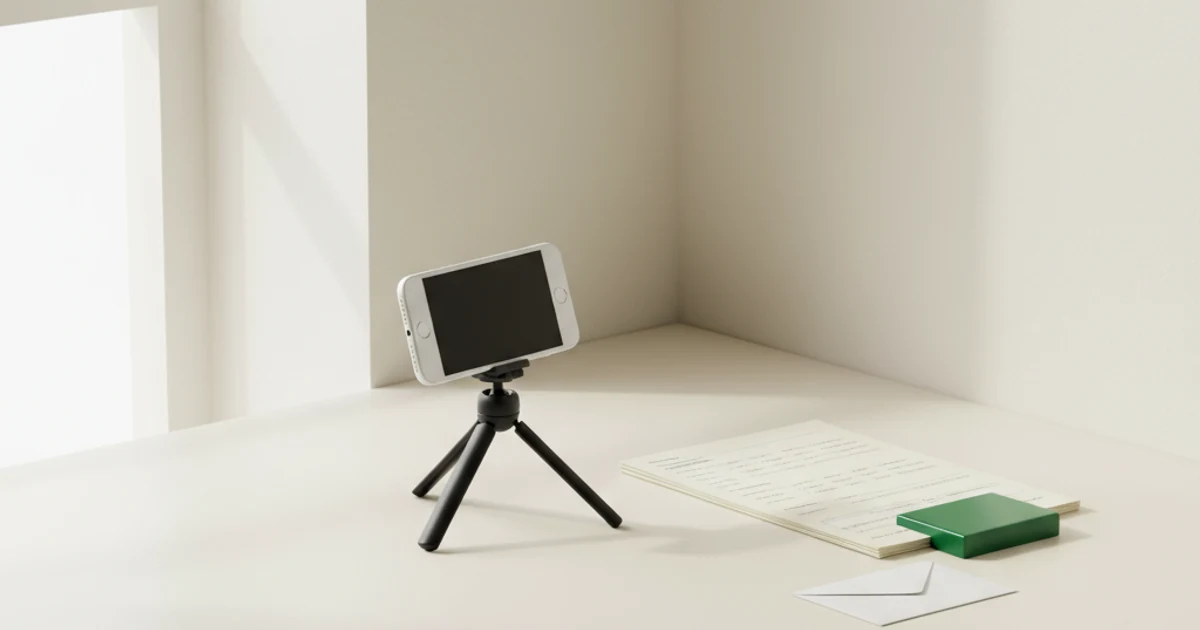
Take your own passport photo at home — smartphone, plain background, and correct framing.
Is a Self-Taken Passport Photo Legally Allowed?
Yes. The US State Department's official guidance states that passport photos may be taken by the applicant or by anyone else, provided the photo meets all technical requirements. There is no rule requiring a professional photographer, a licensed studio, or a third-party service.
The photo must meet the same requirements regardless of who takes it:
- Size: 2×2 inches (51×51 mm)
- Background: Plain white or off-white
- Head size: 1 to 1 3/8 inches (25–35 mm) from chin to crown, occupying 50–69% of the frame
- Expression: Neutral, mouth closed, eyes open and looking directly at the camera
- Glasses: Not permitted (banned since 2016)
- Recency: Taken within the last 6 months
- AI alteration: Prohibited as of January 2026
A self-taken photo that meets all of these requirements is fully valid. A professional studio photo that fails any of these requirements will be rejected. The source of the photo does not matter — only the result.
The 2026 Rule You Must Know Before You Take a Single Shot
Since January 2026, the State Department enforces a strict ban on AI-processed passport photos. This is the single most important update of recent years and it catches people by surprise because the processing happens automatically on most modern smartphones.
Prohibited processing includes:
- Portrait mode and depth effect (iPhone and most Android flagship cameras)
- Beauty mode and skin smoothing (Samsung, Xiaomi, Huawei, and others)
- AI scene enhancement (Google Pixel, Samsung Scene Optimizer)
- Background blur or bokeh effect
- Filters, color effects, or any visual modification
- Any app that alters skin tone, removes blemishes, or smooths facial features
Why this matters: Many of these are enabled by default. If you open your iPhone camera and tap the portrait button without thinking, every photo you take in that session will be AI-processed and therefore rejected. The State Department's automated systems have become significantly better at detecting these alterations, and the rejection rate for AI-processed photos rose sharply in early 2026.
The fix is simple: Go into your camera settings before you take a single test shot and disable every AI and enhancement feature. This takes about two minutes and it is the most important step in this entire guide.
What You Need
You do not need expensive equipment. The following setup produces compliant photos that pass State Department review:
Camera: Any smartphone with a 12 MP or higher rear camera. This includes any iPhone from 2018 onward (iPhone XS and later), any Samsung Galaxy from 2019 onward, and most Android phones released since 2019. The front camera on most phones introduces lens distortion and is not recommended — use the rear camera.
Background: A plain white or off-white wall. A white door, a white foam board from any craft store, or a large white bedsheet pinned flat against a wall all work. The background must be completely plain — no patterns, no visible textures, no objects in the frame behind you.
Lighting: Natural daylight from a large window is the best option. Overcast days between 10 AM and 3 PM produce the most even, shadow-free light. If natural light is not available, two soft lamps placed at 45-degree angles on either side of your face work well. Avoid overhead ceiling lights — they cast shadows under your nose, chin, and eye sockets that can trigger rejection.
Someone to hold the phone: The State Department advises against selfies. Front cameras have more lens distortion, and holding the phone at arm's length makes it difficult to control head size and framing. Have another person hold the phone at eye level, approximately 4–6 feet from your face, using the rear camera.
PixID: After you take the photo, you need to format it correctly for your specific application. A raw iPhone photo is typically 3–8 MB — far too large for DS-160 (maximum 240 KB). PixID handles cropping, background correction, file size optimization, and compliance validation for $4.99.
Step-by-Step: How to Take Your Own Passport Photo
Step 1 — Disable AI and Camera Enhancements
This is the most important step. Do it before anything else.
iPhone:
- Open Settings → Camera
- Turn off Portrait mode (do not use the Portrait camera mode at all)
- Go to Settings → Camera → Formats and select "Most Compatible" (JPEG)
- In the Camera app itself, ensure you are in Photo mode, not Portrait mode
- Check that no filters are applied (the filter icon should show "None")
Samsung Galaxy:
- Open Camera → Settings (gear icon)
- Disable "Scene Optimizer"
- Disable "Shot Suggestions"
- Disable "Shooting Methods → Bixby Vision"
- In the Beauty section, set all sliders to zero or disable entirely
- Ensure you are shooting in standard Photo mode, not Portrait or Pro mode
Google Pixel:
- Open Camera → Settings
- Disable "Top Shot"
- Disable "Face Retouching" — set to "Off" not "Subtle"
- Disable "Night Sight" for this session
- Use standard Photo mode only
Other Android phones: Look in Camera Settings for any option labeled "Beauty," "AI Camera," "Smart Scene Detection," "Face Enhancement," or "Skin Tone." Disable all of them.
Step 2 — Set Up Your Background
Stand at least 2–3 feet in front of your background. This distance prevents shadows from falling on the wall behind you. A shadow on the background is one of the most common rejection reasons and it is entirely preventable by simply standing further from the wall.
The background must be completely plain. If your wall has a visible texture, a light switch, or any object behind you, reposition or cover it. Off-white is acceptable — pure white is not required. Light cream or very light grey walls can work, but the State Department standard is white or off-white, so the closer to white, the better.
Step 3 — Set Up Your Lighting
Position yourself facing a large window. The light should fall evenly across your entire face. If the window is to your side, you will get shadows on one side of your face. If the window is behind you, you will be backlit and your face will be underexposed.
Overcast daylight is ideal. Direct sunlight creates harsh shadows and can cause overexposure. If you are shooting indoors without a suitable window, place two lamps of equal brightness at 45-degree angles on either side of your face, approximately 3–4 feet away. Both lamps should be at face height, not above.
Turn off overhead ceiling lights if you are using window or lamp light. Ceiling lights add a third light source that creates downward shadows on facial features.
Step 4 — Position the Camera
Have the person holding the phone position the rear camera at exactly your eye level. The phone should be approximately 4–6 feet from your face. At this distance, the rear camera captures your head and upper shoulders with minimal distortion.
If you are using a tripod and self-timer, set the timer to 10 seconds to give yourself time to get into position after pressing the button. Set the phone height to your eye level.
Step 5 — Posture and Expression
Stand or sit facing the camera directly. Your head should be straight — no tilt to either side, no rotation. Both eyes must be fully open and looking directly at the camera lens.
Your expression must be completely neutral. Relax every muscle in your face. Mouth closed. No smile, no frown, no raised eyebrows. The slightest upward movement of the mouth corners can trigger rejection at manual review.
Hair must not cover your forehead, eyebrows, or eyes. If you have long hair, pull it back or to the sides so your full face is visible. Remove glasses before taking the photo — glasses have been banned in US passport photos since 2016 with no exceptions.
Remove hats and head coverings unless worn daily for religious reasons. Religious head coverings are permitted provided your full face is visible from chin to forehead with no shadows.
Step 6 — Take Many Shots
Take at least 15–20 photos. You are looking for a shot where:
- Expression is completely neutral
- Both eyes are fully open
- Head is straight with no tilt
- No shadows on face or background
- Hair is not covering any part of the face
- Sharp focus — not blurry
Review the photos on a large screen (a laptop or tablet rather than the phone itself) before selecting the best one. What looks fine on a small phone screen can show shadows or focus issues on a larger display.
After You Take the Photo — Formatting for Your Application
Your raw phone photo is almost certainly not in the correct format for a government application. The issues are predictable:
File size: A raw iPhone or Android photo is typically 3–8 MB. DS-160 has a strict 240 KB maximum. The US passport online renewal portal has different size requirements. Raw phone photos must be compressed and resized before submission.
Dimensions: A standard phone photo is rectangular (4:3 or 16:9 ratio). US passport photos must be square (2×2 inches, or 600×600 pixels minimum for digital submissions). Manual cropping often produces slightly non-square results that get rejected.
Head size: The State Department requires your head to occupy 50–69% of the image height. In a raw phone photo taken from 4–6 feet away, your head is typically too small relative to the frame.
PixID handles all of these automatically. Upload your photo, select your document type and country, and the system crops to the correct dimensions, adjusts head size, replaces or corrects the background, compresses to the correct file size, and validates against 100+ compliance criteria. The output is a ready-to-submit JPEG for digital applications and a 4×6 printable sheet with two correctly sized photos for paper applications. Cost is $4.99 with a 100% money-back guarantee if the photo is rejected.
Common DIY Mistakes — and How to Avoid Them
Portrait mode left on. The single most common rejection reason in 2026. The background blur is immediately detected as AI processing. Check your camera settings before every session — some phones re-enable portrait mode after updates.
Shadows on the background. Stand further from the wall. 2–3 feet of distance between you and the background eliminates virtually all background shadows.
Selfie camera distortion. The front camera on most phones has a wider lens that introduces barrel distortion, making facial proportions look slightly different from reality. Use the rear camera whenever possible.
Wrong background color. Off-white is fine. Light grey, cream, yellow, blue, or any patterned background is not. PixID can replace a non-white background automatically, but the face must be clearly separated from the background in the original photo.
Hair covering the face. Move all hair away from your forehead, eyebrows, and eyes before taking the photo. Even a small amount of hair across the forehead can be flagged.
Photo older than 6 months. Passport photos must be taken within 6 months of your application date. Do not use an old photo even if it looks recent.
Overhead lighting creating shadows. Facial shadows under the nose and chin are a common rejection trigger. Use front-facing window light or side lamps at face height, not ceiling lights.
Frequently Asked Questions
Can I use a selfie for a passport photo?
Does someone else have to take my passport photo?
Can I take a passport photo with my phone?
What background do I need?
Can I smile in my passport photo?
What if I wear glasses every day?
Can I use the same photo for my passport and DS-160?
Sources: US State Department passport photo requirements · ICAO Doc 9303 · DS-160 photo requirements
Get My Compliant Photo — $4.99
Create your photo →